CoCo with default settings
PERSONA: Application developer
In this example, we will show:
-
How easy is to modify an existing pod to make it run in CoCo
-
How the default initdata restrictions apply, by trying to exec into the pod.
-
How the image signature policy work, by running an unsigned pod.
We will not perform any secret retrieval from Trustee, keeping the modifications to the bare minimum.
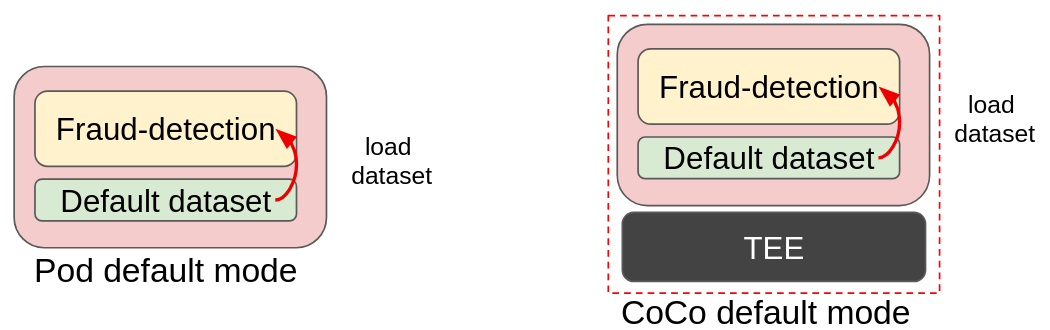
In the above image we can see how the traditional pod is transformed into CoCo: this is the “blackbox” deployment, a very trivial example where the dataset is part of the fraud-detection container image. The dataset is simply loaded into the model and data analysis is performed. Transforming it into a CoCo deployments results in no change in the image, with the benefit of adding an additional layer of protection (memory encryption).
The Confidential Workflow
For now, all Trustee does is to check if the image is allowed to run and was actually signed with the specified key.
-
The fraud-detection container starts. Default initdata is also inserted in the CVM.
-
CoCo internal components read the initdata, notice there is an
image_security_policy_urifield in it and begins attestation to get the verification policy and verify that the image is allowed to run.-
Attestation starts by first having the confidential container to generate a report that shows it is a genuine CoCo running on a secure, trusted platform.
-
The CoCo then sends this report to Trustee.
-
Trustee checks that the report is correct. If so, it means that the initdata is correct and the CoCo internal components are untampered with.
-
Therefore it proceeds sending the requested security policy back to the CoCo internal components, which check if the policy allows the image to be pulled and run.
-
-
The container then runs as usual, following the "default" mode.
Run the application
As specified before, this instance of fraud-detection will not trigger any secret retrieval, therefore it will execute using the default hardcoded settings, meaning the secrets are already inside the pod, and don’t need to be stored in Trustee. This is a very basic approach.
Let’s now run the sample-fraud-detection application in the untrusted cluster.
Create and apply the yaml file.
cat > sample-fd.yaml << EOF
apiVersion: v1
kind: Pod
metadata:
  name: sample-fraud-detection
  namespace: default
spec:
  runtimeClassName: kata-remote
  containers:
    - name: fraud-detection
      image: quay.io/confidential-devhub/signed/fraud-detection:latest
      securityContext:
        privileged: false
        allowPrivilegeEscalation: false
        runAsNonRoot: true
        runAsUser: 1001
        capabilities:
          drop:
            - ALL
        seccompProfile:
          type: RuntimeDefault
EOF

echo ""
cat sample-fd.yaml
echo ""
Note how the only difference in the podspec from a normal pod is runtimeClassName: kata-remote. That’s how easy it is to convert a pod into CoCo!
Let’s run the pod.
oc apply -f sample-fd.yamlWait that the pod is created.
watch oc get pods/sample-fraud-detection -n defaultThe pod is ready when the STATUS is in Running.
Verify that the pod is running in a VM
How to be sure that all what we did so far is actually running in a VM? There are several ways to check this.
Let’s check it via command line using az.
az vm list --query "[].{Name:name, VMSize:hardwareProfile.vmSize}" --output tableExample output:
Name                                          VMSize
--------------------------------------------  ----------------
aro-cluster-q5hqf-xs7zb-master-0              Standard_D8s_v3
aro-cluster-q5hqf-xs7zb-master-1              Standard_D8s_v3
aro-cluster-q5hqf-xs7zb-master-2              Standard_D8s_v3
aro-cluster-q5hqf-xs7zb-worker-eastus1-6rlsl  Standard_D4s_v3
aro-cluster-q5hqf-xs7zb-worker-eastus2-vt87j  Standard_D4s_v3
aro-cluster-q5hqf-xs7zb-worker-eastus3-6dzt4  Standard_D4s_v3
podvm-sample-fraud-detection-c0311387         Standard_DC2as_v5
bastion-q5hqf                                 Standard_DS1_v2
Look at the various VMs. You will see there are:
-
3 masters VM (called aro-cluster-insert-your-guid-here-<random chars>-master-0/1/2)
-
3 workers VM (called aro-cluster-insert-your-guid-here-<random chars>-worker-<region>-<random chars>)
-
1 bastion-insert-your-guid-here VM, used internally by the workshop infrastructure. The console on the right is actually connected to this VM, and all commands are being performed from here.
-
1 podvm-sample-fraud-detection-<random chars>. This is where the
sample-fraud-detectionpod is actually running! Note also how the instance tyoe underSizecolumn at the right side is not the same as the other VMs. It is indeedStandard_DC2as_v5, as specified in the OSC ConfigMap. Looking at the DCes Azure docs we can also confirm that this instance type is using confidential hardware.
Check pod restrictions
This sample-fraud-detection test pod runs under the previously configured OSC initdata policy, therefore if you followed the workshop initdata, logs are enabled but it won’t be possible to exec.
Check that logs are enabled
oc logs pods/sample-fraud-detection -n default | head -n 15And notice how the workload log is printed.
No DECRYPTION_KEY_PATH; using default dataset
Using default dataset: default.csv
Loading data from folder
Loaded: /app/downloaded_datasets/default.csv
[...]
Check that pod exec is disabled
oc exec -it pods/sample-fraud-detection -n default -- bashAnd notice how an error is returned:
error: Internal error occurred: error executing command in container: cannot enter container 8c0001fb69f7b8e728a3ccc8ad51d362f284f17450765f895db91dce7fc00413, with err rpc error: code = PermissionDenied desc = "ExecProcessRequest is blocked by policy: ": unknownThis is the expected behavior based on the default INITDATA policy, where ExecProcessRequest is set to false and ReadStreamRequest is set to true.
Destroy the example pod
The pod created in this example section is no different from any other pod, therefore it can be destroyed just as the others (via command line, web ui, etc.). Behind the scenes, the operator will make sure that the created VM will also be completely deallocated.
oc delete pods/sample-fraud-detection -n default --wait=falseTry an unsigned image
In this example, we will show how a pod fails when it doesn’t meet the signature verification requirements we defined when configuring Trustee.
Signature check flow
Let’s recap the flow:
PERSONA: Operational security expert
When a confidential container starts, its component internally look at the configured initdata and see that for the image, it has to get the following policy from Trustee:
cat $BASE_DIR/trustee/initdata.toml | grep -B 1 image_[image]
image_security_policy_uri = 'kbs:///default/trustee-image-policy/policy'How is the trustee-image-policy/policy set?
oc extract secrets/trustee-image-policy -n trustee-operator-system --to=-# policy
{
"default": [
{
"type": "reject"
}
],
"transports": {
"docker": {
"quay.io/confidential-devhub/signed":
[
{
"type": "sigstoreSigned",
"keyPath": "kbs:///default/conf-devhub-signature/pub-key"
}
],
"registry.access.redhat.com":
[
{
"type": "sigstoreSigned",
"keyPath": "kbs:///default/redhat-signature/pub-key"
}
],
"registry.redhat.io":
[
{
"type": "sigstoreSigned",
"keyPath": "kbs:///default/redhat-signature/pub-key"
}
]
}
}
}Which means that inside the CoCo component, when the image of the container is coming from quay.io/confidential-devhub/signed, registry.access.redhat.com or registry.redhat.io, they must ensure it is signed, and its signature will be checked against the corresponding Trustee key.
When instead the image is not coming from quay.io/confidential-devhub/signed, registry.access.redhat.com or registry.redhat.io, they should not run it.
So what happens when an image from quay.io/confidential-devhub/signed is not signed?
Unsigned image from confidential-devhub
PERSONA: Application developer
Let’s find out! Let’s run the following:
cat > unsigned-confidential-devhub.yaml << EOF
apiVersion: v1
kind: Pod
metadata:
  name: unsigned-confidential-devhub
  namespace: default
spec:
  runtimeClassName: kata-remote
  containers:
    - name: unsigned-confidential-devhub
      image: quay.io/confidential-devhub/signed/unsigned-image:latest
      securityContext:
        privileged: false
        allowPrivilegeEscalation: false
        runAsNonRoot: true
        runAsUser: 1001
        capabilities:
          drop:
            - ALL
        seccompProfile:
          type: RuntimeDefault
EOF

echo ""
cat unsigned-confidential-devhub.yaml
echo ""
The podspec is very similar to sample-fraud-detection, but the image changes: it’s quay.io/confidential-devhub/signed/unsigned-image:latest. This image is not signed.
Let’s run it and see what happens:
oc apply -f unsigned-confidential-devhub.yamlWhile we wait that it boots, let’s look at the events in the pod:
watch oc get events --field-selector involvedObject.name=unsigned-confidential-devhub -n defaultAnd here we see that after some successful events (meaning the CVM booted fine and the CoCo component managed to connect with the OCP worker node and also Trustee), we see that the image pull failed:
1m         Warning   Failed           pod/unsigned-confidential-devhub   Error: CreateContain
er failed: rpc status: Status { code: INTERNAL, message: "[CDH] [ERROR]: Image Pull error: Fai
led to pull image quay.io/confidential-devhub/signed/unsigned-image:latest from all
mirror/mapping locations or original location: image: quay.io/confidential-devhub/signed/unsigned-image:latest,
error: Image policy rejected: Denied by policy: rejected by `sigstoreSigned` rule",
details: [], special_fields: SpecialFields { unknown_fields: UnknownFields { fields: None },
cached_size: CachedSize { size: 0 } } }...
And the explanation is very clear: error: Image policy rejected: Denied by policy: rejected by sigstoreSigned rule", meaning the signature policy detected the image is coming from quay.io/confidential-devhub/signed, but since it is not signed, it does not allow it to run.
Destroy the pod
Of course to clean up resources, make sure to delete the pod you just created.
oc delete pods/unsigned-confidential-devhub -n default --wait=falseIn general, feel free to try any unsigned image, or signed with a different key from the one specified in the signature verification policy. No such image will be allowed to run.
Inspect Trustee
PERSONA: Operational security expert
We can inspect Trustee and see in the logs how the CoCo pod fetched the image policy and the public key assigned to quay.io/confidential-devhub/signed, but because the internal signature check did not pass, the pod didn’t ask for any secret.
POD_NAME=$(oc get pods -l app=kbs -o jsonpath='{.items[0].metadata.name}' -n trustee-operator-system)

oc logs -n trustee-operator-system $POD_NAME
This is the expected output:
...
[2025-11-28T20:09:46Z INFO attestation_service] AzTdxVtpm Verifier/endorsement check passed.
[2025-11-28T20:09:46Z INFO actix_web::middleware::logger] 10.128.2.73 "POST /kbs/v0/attest HTTP/1.1" 200 7733 "-" "attestation-agent-kbs-client/0.1.0" 0.892395
[2025-11-28T20:09:46Z INFO actix_web::middleware::logger] 10.129.2.40 "GET /kbs/v0/resource/default/trustee-image-policy/policy HTTP/1.1" 200 850 "-" "attestation-agent-kbs-client/0.1.0" 0.001137
[2025-11-28T20:09:47Z INFO actix_web::middleware::logger] 10.129.2.40 "GET /kbs/v0/resource/default/conf-devhub-signature/pub-key HTTP/1.1" 200 629 "-" "attestation-agent-kbs-client/0.1.0" 0.001067